
Multi-language setup
Most LLMs can interact with users in multiple languages. For example, the following prompt works seamlessly with the gpt-4o-mini model, allowing users to communicate in either English or Spanish:
You are a helpful assistant providing user with information on plants and animals.
User may ask you questions in either English or Spanish. Respond in the same
language in which the question was asked.
This works out of the box in a text conversation, for example, when chatting via the Chat button on the Agent card. In a voice conversation, however, the right approach depends on the type of model your agent uses:
- Regular (text) models – require you to coordinate the speech-to-text, LLM, and text-to-speech layers.
- Speech-to-speech models – switch between languages natively, with no extra setup.
Regular (text) models
For regular (text) models the conversation passes through three layers: a speech-to-text (STT) service transcribes the user's speech, the agent's LLM generates a text response, and a text-to-speech (TTS) service converts that response back to audio. To support multiple languages, all three layers must be addressed:
- Speech-to-text – the STT engine must be able to run in multi-lingual mode, so that it can transcribe whatever language the user speaks.
- Agent (LLM) response – depending on your prompt, the agent may respond in the same language the user used, or in a different (fixed) language.
- Text-to-speech – the TTS engine must be able to generate speech for the language of the agent's response. For many engines this requires switching the voice to one that matches the spoken language.
The sections below describe how to set up each of these layers.
Multi-lingual speech-to-text
The following STT engines can be configured to work in multi-lingual mode:
| STT engine | Multi-lingual configuration |
|---|---|
| Deepgram Nova 3 | Enabled via the Multilingual checkbox. |
| Soniox | Enabled via the Multilingual checkbox. |
| Microsoft | Enabled via the languageDetectionActivate and alternativeLanguages bot connection parameters (see below). |
Configuring the Microsoft STT engine
To enable multi-lingual transcription for the Microsoft STT engine, navigate to the Bot connections screen, locate the bot connection connected to your agent, click Edit, and add the following in its Advanced configuration tab:
{
  "languageDetectionActivate": true,
  "alternativeLanguages": [
    {
      "language": "es-US",
      "voiceName": "es-US-AlonsoNeural"
    }
  ]
}
Set language to the additional language (or languages) you want to recognize, in addition to the primary Language configured in the agent's Speech and Telephony tab. A voiceName is also required for each alternative language; specify any valid voice supported by your text-to-speech provider.
Setting the agent response language
The language the agent responds in is controlled entirely by the Prompt:
- To make the agent reply in the same language the user spoke, instruct it accordingly, for example:
Respond in the same language in which the question was asked. - To make the agent always reply in a specific language, regardless of the language spoken, instruct it to do so, for example:
Always respond in English.
Keep in mind that the response language determines which voice the TTS engine needs to use – see the next section.
Switching the text-to-speech voice
Many TTS engines use a language-specific voice, so the voice must be switched to match the language of the agent's response. This can be done in one of the following ways.
Using a multi-agent topology
Use a multi-agent topology where the call is routed to a language-specific agent, and the voice is switched via the session_params advanced configuration parameter of that agent.
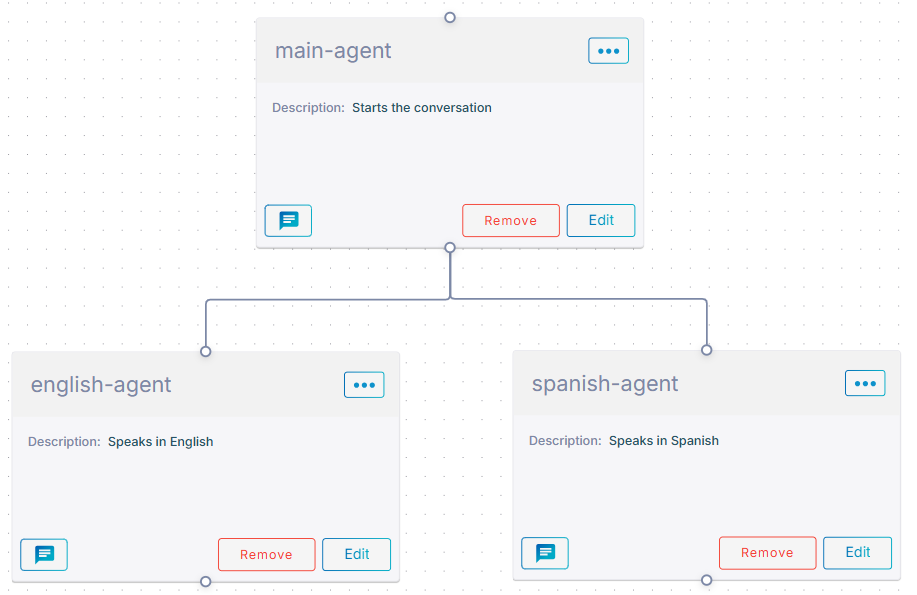
The Main agent starts the conversation. Once it detects the spoken language, it passes the conversation to the English or Spanish agent accordingly. The language-specific agent updates the conversation's language and voiceName via the corresponding session parameters.
To create the setup:
- Create a multi-agent topology as shown in the figure above.
- Configure Orchestration mode in the Main agent as
delegate. - Add the
pass_questiontool to the Main agent.
- Configure Orchestration mode in the Main agent as
-
Set the Main agent's Prompt to something like this:
You are friendly assistant handling voice conversation with user. Your task is to detect the spoken language and pass the user question to the corresponding agent: language | agent -------- | ------------ Spanish | spanish-agent English | english-agent -
Configure the Main agent's bot connection to use a multi-lingual STT engine, as described in Multi-lingual speech-to-text, so that the Main agent can reliably detect the spoken language.
-
Navigate to the Agents screen, and configure the following Advanced configuration parameters for the Spanish agent:
{
  "session_params": {
    "language": "es-US",
    "voiceName": "es-US-AlonsoNeural"
   }
}
Specify a valid
voiceNamesupported by your text-to-speech provider.
Using session parameter tools
Instead of routing the call to a language-specific agent, you can let a single agent switch its own voice by defining session_params_tools that update the voice configuration, and instructing the agent to call them whenever it switches the output language.
Add the following to the agent's Advanced configuration tab:
{
  "session_params_tools": [
    {
      "name": "switch_to_english",
      "description": "Switch the speech output voice to English.",
      "session_params": {
        "language": "en-US",
        "voiceName": "en-US-BrianNeural"
      }
    },
    {
      "name": "switch_to_spanish",
      "description": "Switch the speech output voice to Spanish.",
      "session_params": {
        "language": "es-US",
        "voiceName": "es-US-AlonsoNeural"
      }
    }
  ]
}
Then instruct the agent, in its Prompt, to call the matching tool whenever it changes the language it responds in, for example:
You are a friendly assistant handling a voice conversation with the user.
Respond in the same language in which the question was asked.

Before responding in a different language than your previous response, call the
matching tool to switch the voice: call `switch_to_english` for English and
`switch_to_spanish` for Spanish.
For details on session_params_tools, see Tools for modifying call settings.
Aligning the voice to the detected language automatically
For the Microsoft STT engine only, the voice can be aligned automatically to the language detected by the STT engine, without any prompt instructions or extra tools.
This approach assumes that the agent always responds in the same language the user spoke. It is the simplest to configure, but may be less reliable than the previous methods – for example, when the first utterance is very short (e.g. "Hi") or contains a word that is identical or similar in both languages.
To enable automatic voice alignment, add the following in the bot connection's Advanced configuration tab:
{
  "languageDetectionActivate": true,
  "languageDetectionAutoSwitch": true,
  "languageDetectionMode": "continuous",
  "alternativeLanguages": [
    {
      "language": "es-US",
      "voiceName": "es-US-AshleyNeural"
    }
  ]
}
The key parameter is languageDetectionAutoSwitch, which automatically switches the text-to-speech voice to the matching voiceName whenever the speech-to-text engine detects one of the alternativeLanguages.
For a detailed feature description, see Language recognition for speech to text (Microsoft).
Using DTMF for language selection (legacy alternative)
For scenarios where the spoken language cannot be reliably detected – either by the speech-to-text engine or by the LLM – you can fall back to an "old-school" approach and let the user select the language with a DTMF menu at the beginning of the conversation.
Create a multi-agent topology like the one described in Using a multi-agent topology, but skip the multi-lingual STT configuration in the bot connection's Advanced configuration tab. Then make the following changes:
- For the Main agent, enable DTMF in the Speech and Telephony tab.
-
Update the Welcome message into something like this:
Welcome to the Hotel California. For English press 1. For Spanish press 2. -
Update the Prompt into something like this:
You are friendly assistant handling voice conversation with user.
If user says "DTMF-1":
  - pass question to "english-agent"
If user says "DTMF-2":
  - pass question to "spanish-agent"
Speech-to-speech models
Speech-to-speech models support multiple languages natively and can switch between them instantly, without any of the additional complexity required for regular (text) models. There is no separate speech-to-text or text-to-speech layer to configure – you simply include the needed instructions in the Prompt.
In most cases you will still want to specify the list of supported languages in the Prompt, to prevent the model from switching to an unsupported language. For example:
Converse with the user in English or Spanish only.
Respond in the same language in which the question was asked.